AI Dialer Flows
AI Dialer Flows is where you create and manage outbound Dialer Campaigns.
Use this page when you want to connect a campaign, an agent, a trunk, scheduling rules, retry behavior, recording options, and contact execution into one outbound workflow. The campaign also defines where the call is connected after the dialer reaches the customer.
Open Dialer Campaigns
Go to AI Dialer Flows, open Dialer Campaigns, then press Add Campaign to create a new outbound campaign.
The campaign is the operational object that tells RocketAiFlow which agent should call, which trunk should be used, how many concurrent calls are allowed, when the campaign is active, and how retry should work.
- Use Add Campaign for a new campaign.
- Use Edit Campaign when you need to update an existing campaign.
- Use Concurrent Call Capacity to control how many calls the campaign can manage at the same time.

Configure the campaign
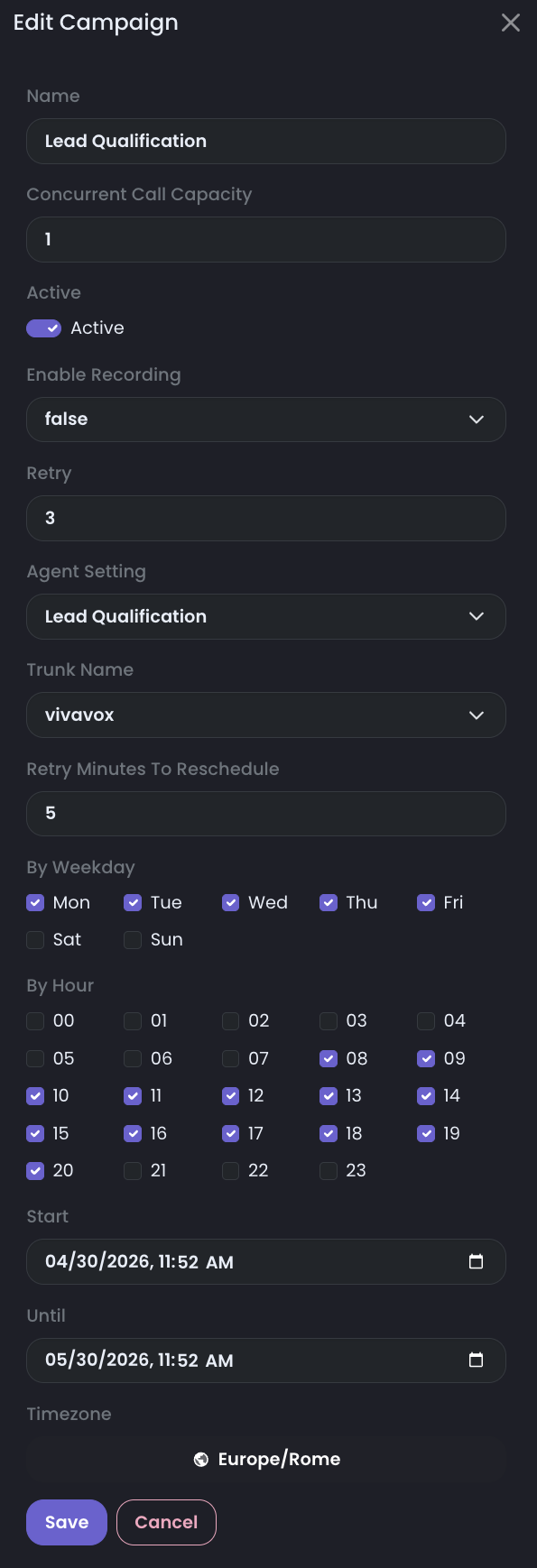
The Edit Campaign form contains the core execution settings for a Dialer Campaign.
Select the agent that should handle the conversation and the trunk that should place the outbound call. For advanced telephony setups, you can also write the trunk name directly and specify the context and extension where the call should be connected after the customer answers.
Scheduling is part of the same campaign setup. Start and Until define the campaign lifetime, Timezone controls how weekdays and hours are interpreted, and Retry controls how unanswered contacts are rescheduled.
Core campaign settings
| Field | Example | Use |
|---|---|---|
Name | test | Campaign name shown in the campaign table and in monitoring. |
Concurrent Call Capacity | 1 | Maximum number of calls this campaign can manage at the same time. |
Active | Active | The campaign can generate calls only when it is active and inside its schedule. |
Enable Recording | false | Enable only when recordings are required for the campaign and legal/compliance rules allow it. |
Agent Setting | test | The AI voice agent that handles the conversation. |
Trunk Name | providerPjsip | The trunk used to place outbound calls. In advanced setups, write the trunk name explicitly when it must match a specific telephony route. |
Context | raf-pjsipProvider | Advanced setting that defines the telephony context where the answered customer call is connected. |
Exten | configured destination | Advanced setting that defines the extension reached inside the selected context after the dialer calls the customer. |
Scheduling and retry
| Field | Example | Use |
|---|---|---|
Retry | 3 | How many retry attempts are allowed when the contact result is different from answer. |
Retry Minutes To Reschedule | 5 | How many minutes RocketAiFlow waits before rescheduling the contact after a retryable outcome. |
By Weekday | Mon, Tue, Wed, Thu, Fri, Sat, Sun | Days when the campaign is allowed to call. |
By Hour | 00-23 | Hours when the campaign is allowed to call. |
Start | 04/30/2026, 11:52 AM | Campaign start date and time. |
Until | 05/30/2026, 11:52 AM | Campaign end date and time. |
Timezone | Europe/Rome | Timezone used to evaluate campaign duration, weekdays, hours, start, and until. |
Read the campaigns table
The Dialer Campaigns list includes quick switches to enable or disable each campaign and to turn recording on or off when recording is required.
Realtime monitoring
Realtime campaign behavior is described in Dialer Dashboard Panels. Use that page to read Dialer Status, active calls, call limits, dialing rate, outcomes, Real-Time Agents & Trunks, talk time, ring time, and selected time-range performance.
During a live run, the Dialer dashboard is the main operational view for outbound. If Dialer Status shows calls in progress, the campaign is actively generating calls. If the trunk moves from Not In Use to In Use, calls are using the telephony path.
Review call results
Use Call Records to review outcome, transcript, recording state when enabled, talk time, ring time, and any data saved by functions.
When results are unclear, review the Dialer dashboard before changing prompt, contacts, trunk, or campaign settings.