Import Contacts
Import Contacts lets you upload a CSV and decide where those contacts should be used.
Contacts can be associated with an outbound dialer campaign or with an agent for inbound contact lookup.
Prepare the CSV first
For the minimum import, use a CSV with one column: phone.
Select the correct usage
Choose the usage based on where the list should be available.
After you select Usage, RocketAiFlow automatically shows the campaign selector for outbound contacts or the agent selector for inbound contacts.
- Use AI Dialer Flows when contacts must be attached to an outbound campaign.
- Use Inbound Ai when the agent must automatically retrieve the contact data associated with the caller phone number.
Select the campaign or agent
Outbound campaign
For outbound, select the campaign that must receive the imported contacts. The contact can provide values for greetings, prompt variables, function context, and call review.
Inbound agent
For inbound, select the agent that must use the imported contacts through Contact Inbounds.
- Agent settings allow contact lookup from Contact Inbounds.
- Contact Inbounds contains a loaded list with a contact matching the caller phone number.
- If a template variable does not exist on the matched contact, it is not rendered.
- Custom values should be stored as key-value pairs inside data, so templates can use paths such as {t.data.birthDate}.
Minimum mapping
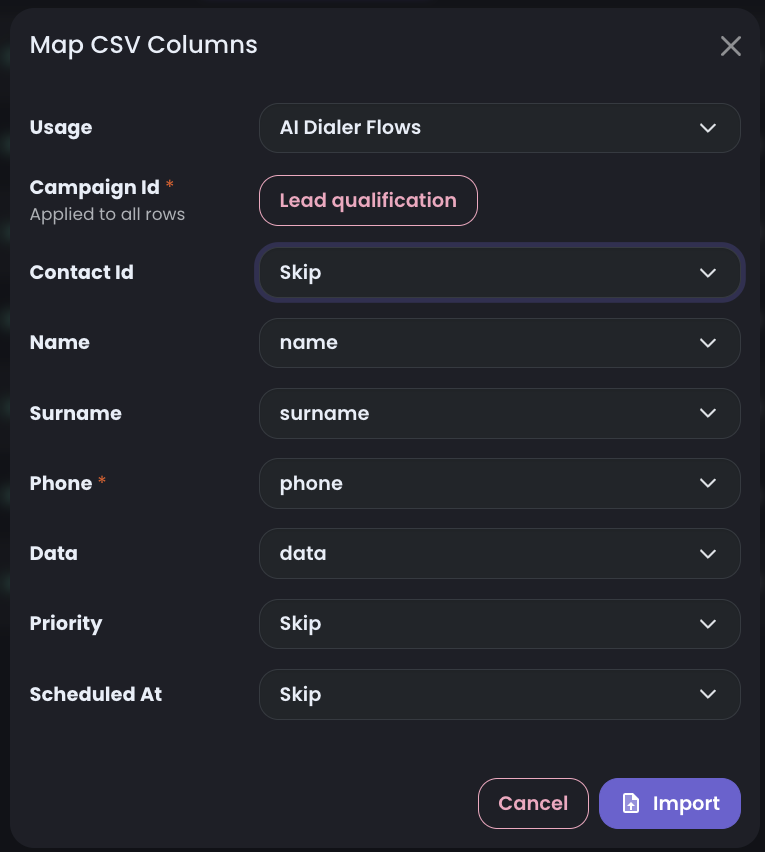
Map at least Phone. All other fields are optional, but column names should be clear and consistent before upload.
Contact fields
| Field | Required | Purpose |
|---|---|---|
phone | Yes | Destination phone number used for the outbound call. |
contactId | No | External identifier used to correlate RocketAiFlow contacts and calls with CRM, database, or source-system records. |
name | No | Contact first name, available for personalization and context. |
surname | No | Contact surname, available for personalization and context. |
data | No | Free JSON object for custom fields. Values here are available during the call and can be used as agent context. |
priority | No | Contact priority. If omitted, RocketAiFlow loads the contact with priority 1. Higher priority contacts are selected first. |
scheduledAt | No | Date and time when the contact becomes eligible for calling. |
Track import progress
After the import starts, review the import counters to understand whether the file was accepted cleanly.
- Processed
- Inserted
- Failed
- Skipped
Uploaded CSV files
The uploaded CSV list shows every import file and the available actions for each file. Use it to review previous uploads, check the import state, and access options such as reloading contacts when a campaign needs contacts again.

Common import issues
- phone values are missing or malformed
- the wrong column is mapped to Phone
Validation checklist
- the expected number of contacts was processed
- valid rows were inserted
- failed rows are understood