Troubleshooting
Use this page when an early test does not match expectations and you need to understand where to look before changing configuration.
Start from visible operational signals: trunk state, Dialer Status, Real-Time Agents & Trunks, associated contacts, concurrent call capacity, and call records.
Change one layer at a time. Do not edit prompt, trunk, routing, and campaign settings together while you are diagnosing the same issue.
Advanced analysis with dashboards, logs, and traces
For advanced analysis, review the Grafana dashboards to understand whether the issue belongs to the system, telephony layer, database, container runtime, or workflow behavior.
Use Grafana Logs Drilldown when you need to move from a live symptom to the related logs and traces. This is useful when the problem crosses a campaign, API action, function call, endpoint, or internal service.
Dialer Dashboardshows outbound campaign status, active calls, limits, dialing rate, and live outcomesReal-Time Agents & Trunksshows whether agents, endpoints, and trunks are available, in use, or unavailableLogs Drilldownhelps inspect logs and traces from Grafana when the issue needs deeper evidence- use
Node Exporter Fullto confirm host and system health - use
Asterisk Overviewto review telephony behavior at a higher level - use
Asterisk Logwhen you need telephony-related log review - use
cAdvisorwhen container runtime pressure may be involved - use
MySQL 8when the database may be contributing to the incident
If dashboards, logs, and traces do not show a system-level issue, continue with the inbound or outbound checks below and use the screenshots as the reference for what to verify.
What to check if something goes wrong
Inbound
If the inbound run does not behave correctly, start from Trunk status. If the trunk is not Registered, it cannot receive the test call and the inbound routing will not be reached.
- the trunk shows
Registeredin Trunk status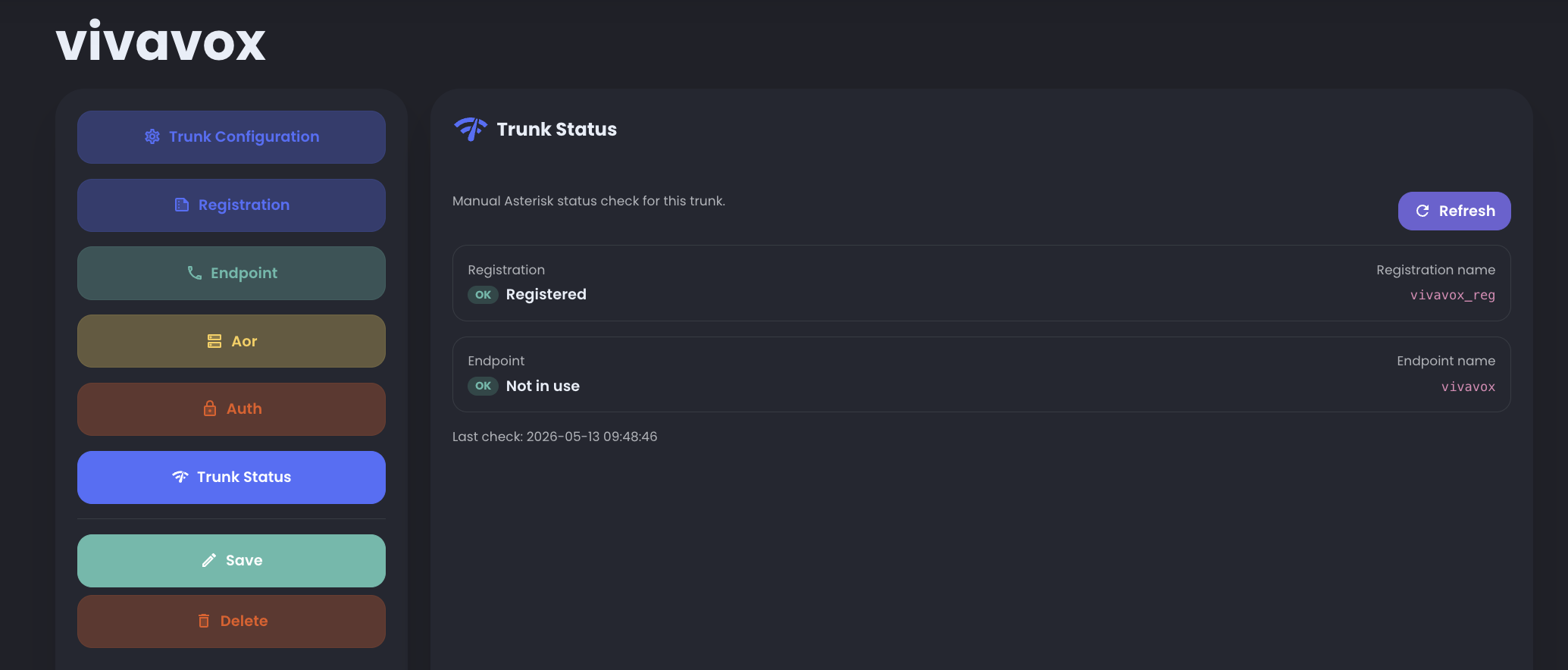
- the inbound number or route is connected to the expected AI Inbound Routing
- the correct agent is assigned
- the agent has the right prompt
- the required functions are attached, if the workflow uses transfer, hangup, or API actions
- the result appears in Inbound Call Records
Outbound
For outbound, start from the campaign real-time dashboard:
- open the campaign real-time Dashboard
- check Dialer Status: if it shows
Call in progress, the campaign is placing calls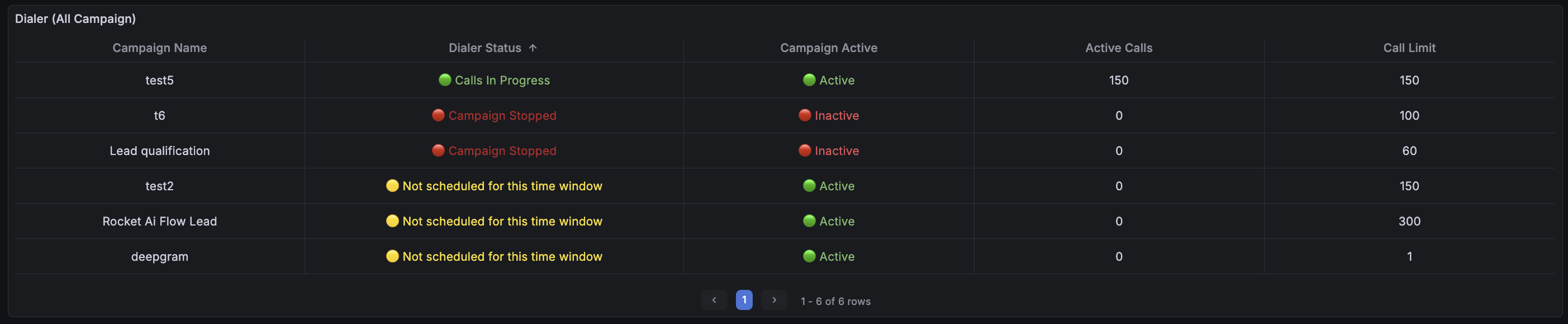
- check the number of generated calls and active calls
- check Real-Time Agents & Trunks: the trunk is Not In Use when available and becomes In Use while calls are running
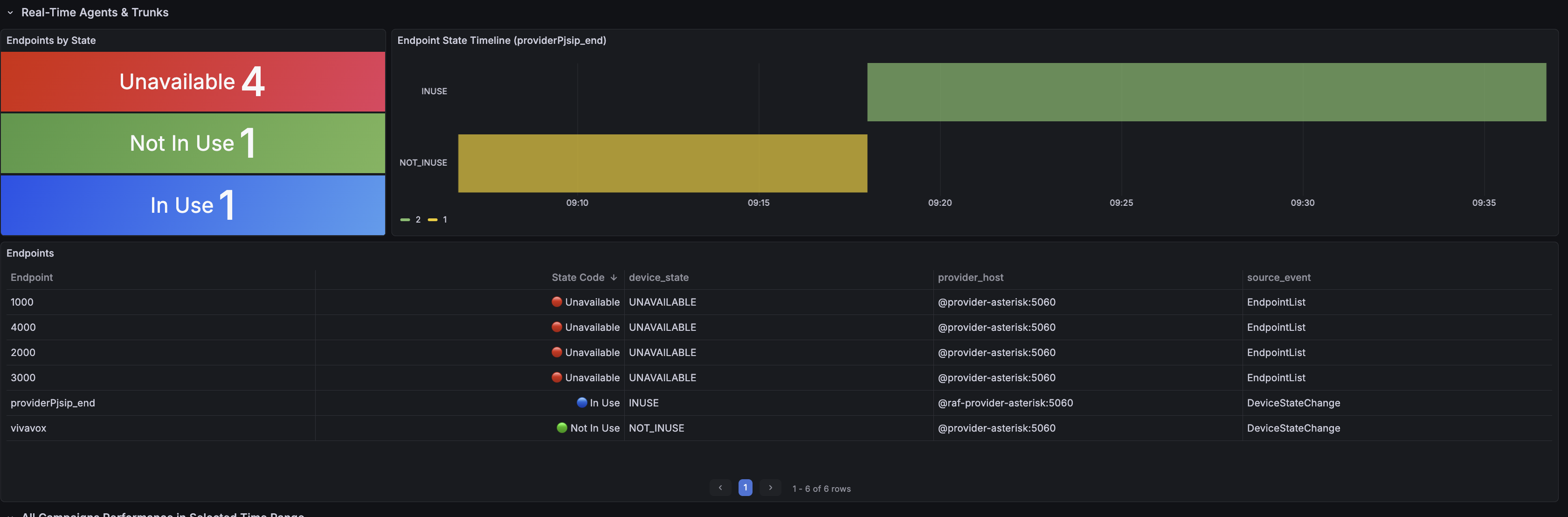
- check that the campaign has associated contacts and that
Scheduled Atis earlier than now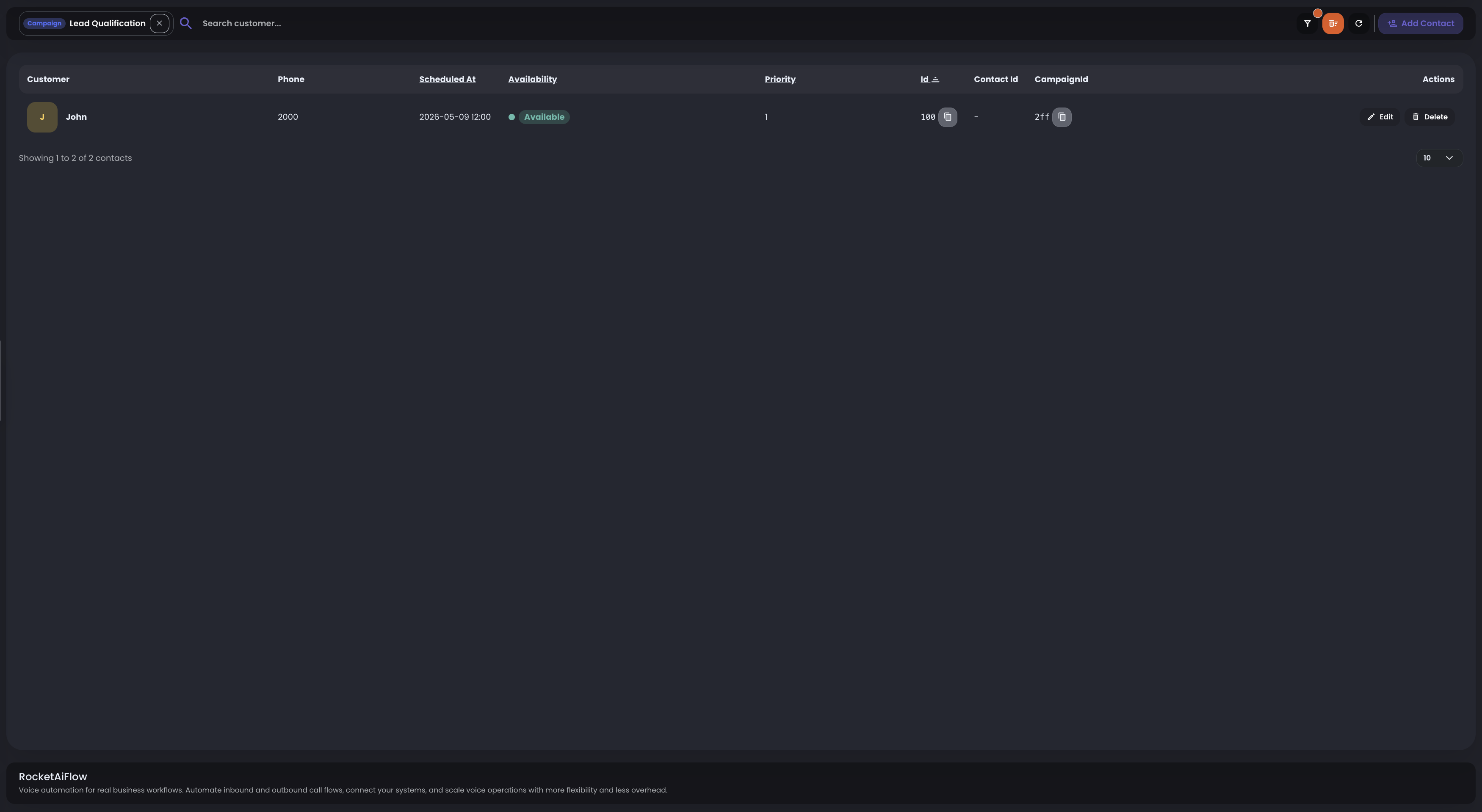
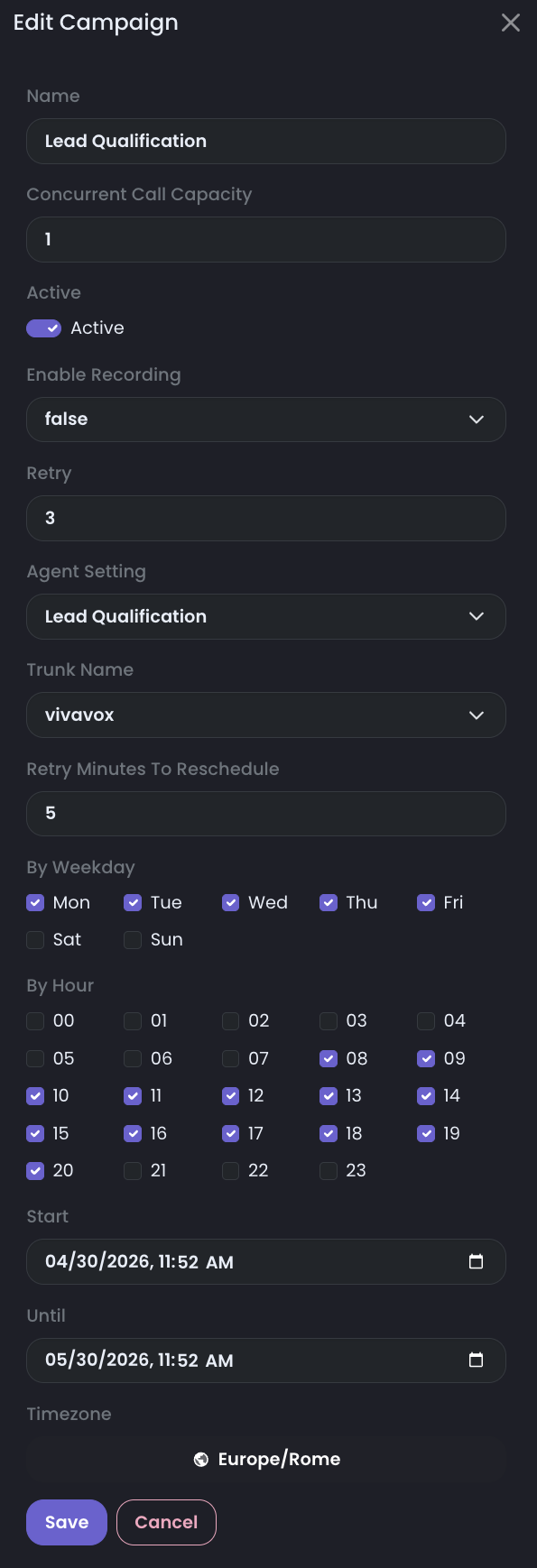
- check concurrent call capacity, campaign start and end dates, active days, and timezone
- check the final result in Call Records
A practical recovery pattern
When something is unclear:
- return to one known agent
- use one controlled route or one small campaign
- place one manual test call
- review one call record
Then review the related operational signals:
- active calls versus configured limits
- campaign status and dialing activity
- endpoint and trunk state
- recent talk time and ring time trends