Configure Agent Functions
Functions give the voice agent controlled ways to act during the call: transfer the call, save a callback, record structured data, or call an API.
The most important use case is connecting RocketAiFlow to the tools the company already uses. Through API-backed functions, the agent can update CRM records, check availability, create follow-ups, route requests, or use internal software automatically while following the rules you define.
How To Decide What Belongs In A Function
Use a function when the agent must perform a real action, not only speak.
Functions connect the conversation to the business workflow. With a function, the agent can transfer a call, save data, create a follow-up, or use business software through an API.
Do not create a function for rules that belong in the prompt. Voice tone, phrases to say, questions to ask, and conversational behavior should stay in the prompt.
Create a function when the agent must:
- transfer the call
- end the call
- save data collected during the conversation
- retrieve information from another system
- update a CRM or another business tool through an API
- create a follow-up, callback, task, ticket, lead, or appointment
Where functions are configured
Open the AI Voice Agent and use the Functions area to add preconfigured functions or create a custom API-backed function.
For each function, configure the name, description, endpoint behavior, parameters, required fields, enum values, and any dynamic values the function needs.
- use preconfigured functions for call control and common workflow actions
- use custom functions when the agent must call software used by the business
- save the function, then mention the exact function name and trigger condition in the agent prompt
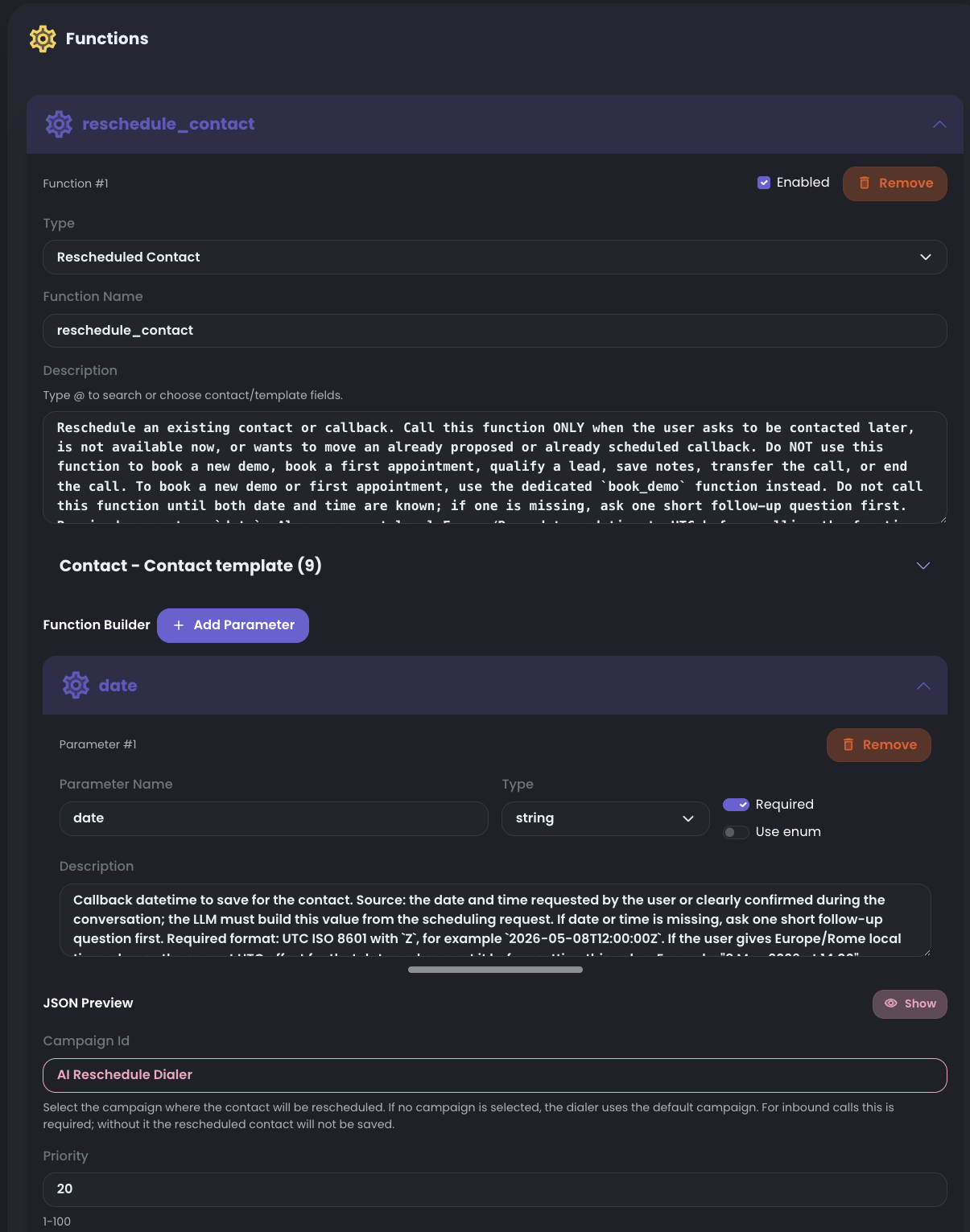
Preconfigured Function Examples
RocketAiFlow includes ready functions that can be used as a starting point instead of building every action from zero.
Use these examples first when they match the workflow. When the agent needs to call business systems through APIs, RocketAiFlow lets you create and call as many custom functions as the workflow requires.
For hangup_call, transfer, and rescheduled_contact, keep the preconfigured parameters exactly as they are. Do not delete, rename, or change the parameter structure. These parameters are already aligned with RocketAiFlow's internal APIs. Adapt descriptions and allowed values only where the function asks you to.
hangup_call: ends the call cleanly when the workflow is complete.transfer: sends the call to a human destination or extension.rescheduled_contact: saves a future callback time for the contact.save_lead_qualification: records the lead qualification result collected by the agent.
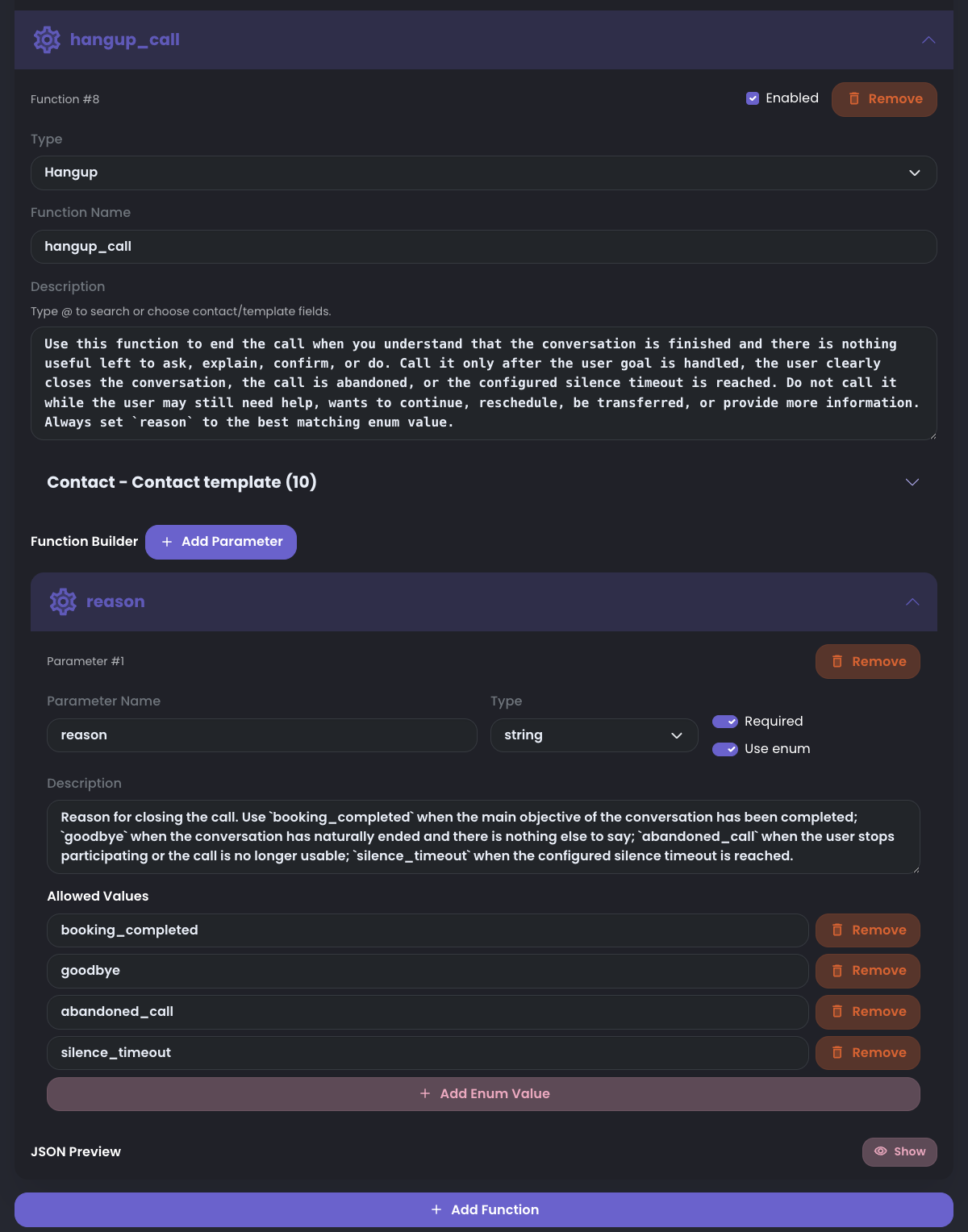
hangup_call
Use hangup_call when the agent should close the active call after the workflow is complete.
When you select this preconfigured function, RocketAiFlow automatically sets the internal endpoint used to close the call. You do not need to configure the endpoint manually.
Keep the reason parameter exactly as provided. Do not delete it, rename it, or change its structure. Change only the descriptions:
This keeps the endpoint safe and lets the LLM focus on deciding when the call is complete and what closure reason should be recorded.
- function description: explain when the agent should end the call
reasonsetup: keep it as a required string and keepUse enumenabledreasondescription: explain what reason the agent should pass when closing the callbooking_completed: use it when the main objective of the conversation has been completedgoodbye: use it when the conversation has naturally ended and there is nothing else to sayabandoned_call: use it when the user stops participating or the call is no longer usable
transfer
Use a transfer function when the agent should move the active call to another destination.
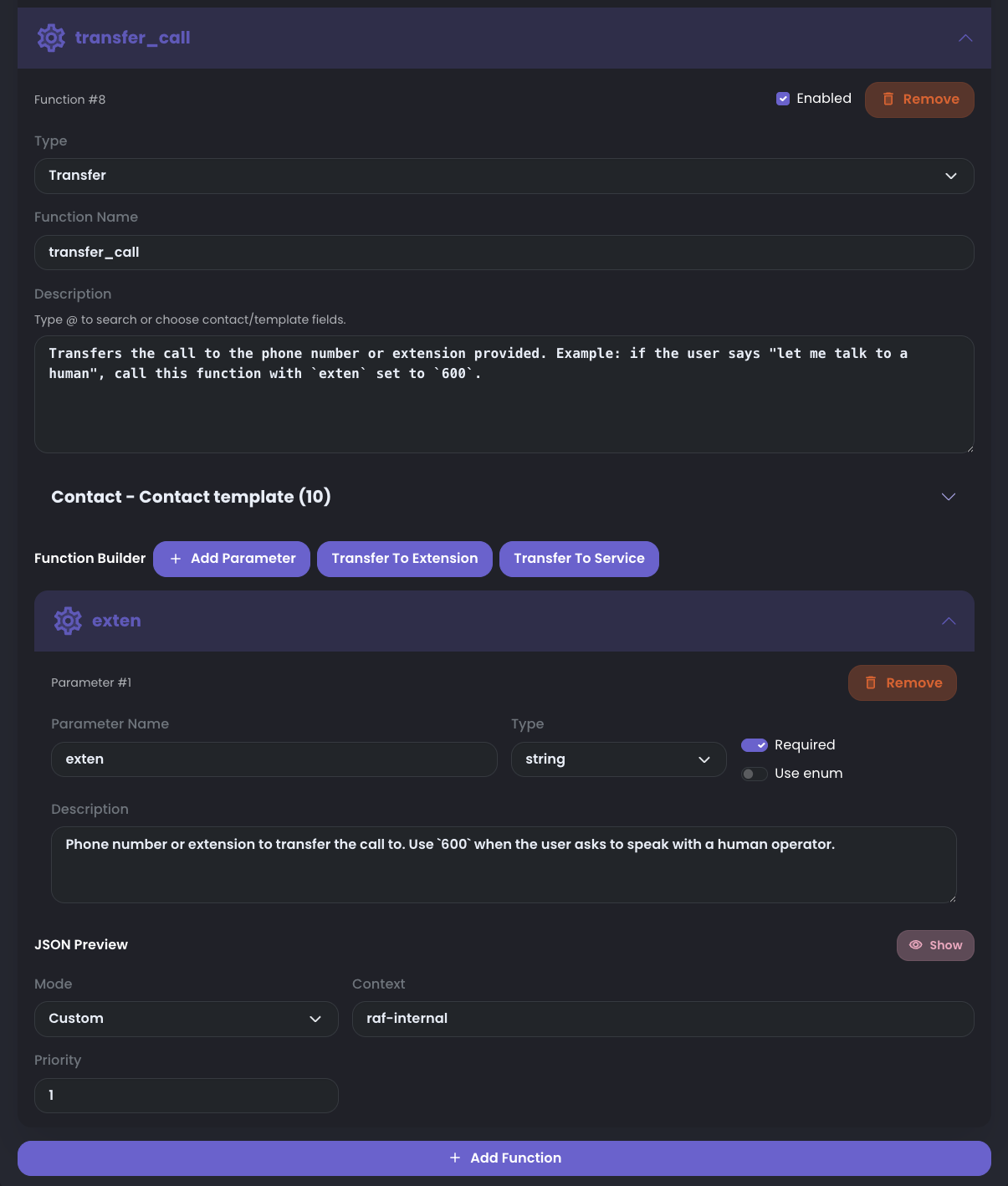
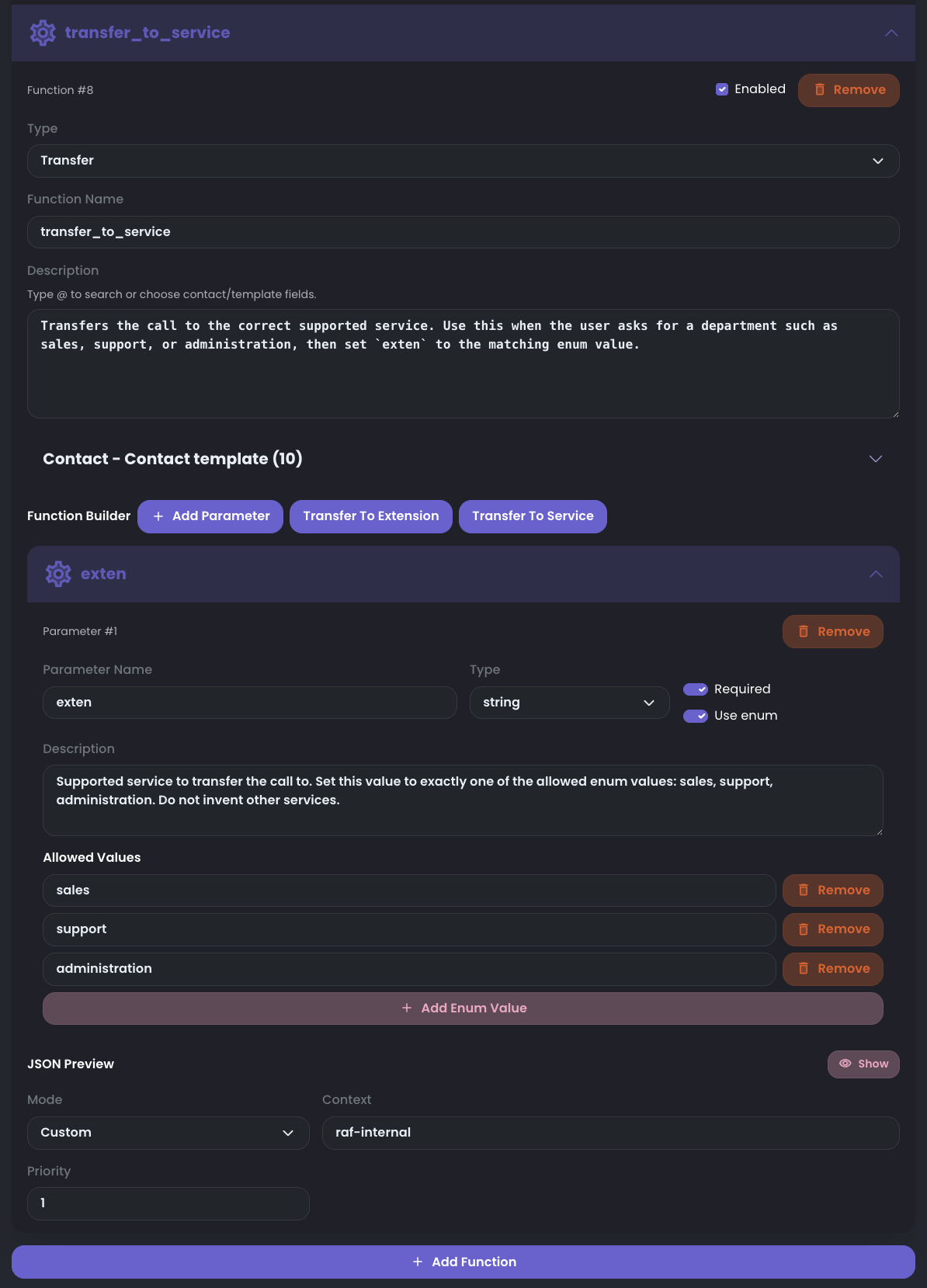
RocketAiFlow provides preconfigured transfer options that automatically use the internal transfer API. Choose the option that matches the workflow, then adapt only descriptions and allowed values. Do not delete, rename, or replace the provided exten parameter.
If no custom transfer context is selected, RocketAiFlow uses the default context raf-internal. Keep Priority as 1 unless your telephony route requires another value.
transfer: transfers the call to the phone number or extension provided in theextenparameter.transfer_call: created by Transfer To Extension. Use it for a known extension or phone number. Keepextenrequired and leaveUse enumoff. Example: transfer to600.transfer_to_service: created by Transfer To Service. Use it for a supported department. Keepextenrequired and keepUse enumenabled with supported values such assales,support, andadministration.- Mode and Priority: use
Customonly when you need a different transfer context, and change priority only when your route requires it.
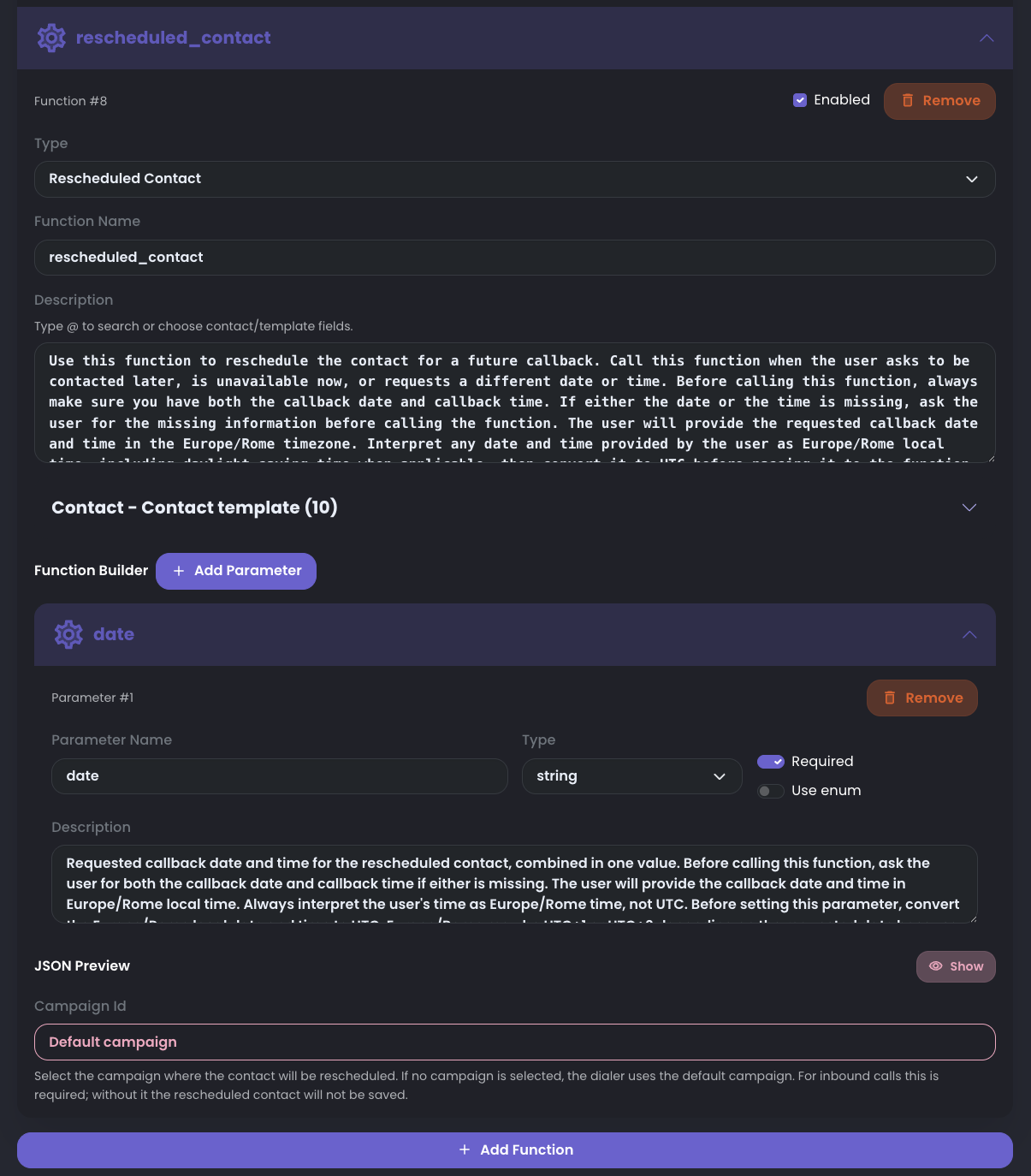
rescheduled_contact
Use rescheduled_contact when the contact asks to be called back later or when the workflow needs to save a future callback.
This preconfigured function uses the data parameter. Do not delete it, rename it, or change its structure. The data parameter is used to store the date and time requested by the user for the next call.
When the function runs, the rescheduled call can be saved in:
For this function, change only the descriptions and the campaign value when needed. Keep the provided parameter structure so the agent can collect the requested callback time and save the contact in the correct campaign.
- the campaign selected in the function configuration
- the default campaign associated with the agent, if no specific campaign is selected
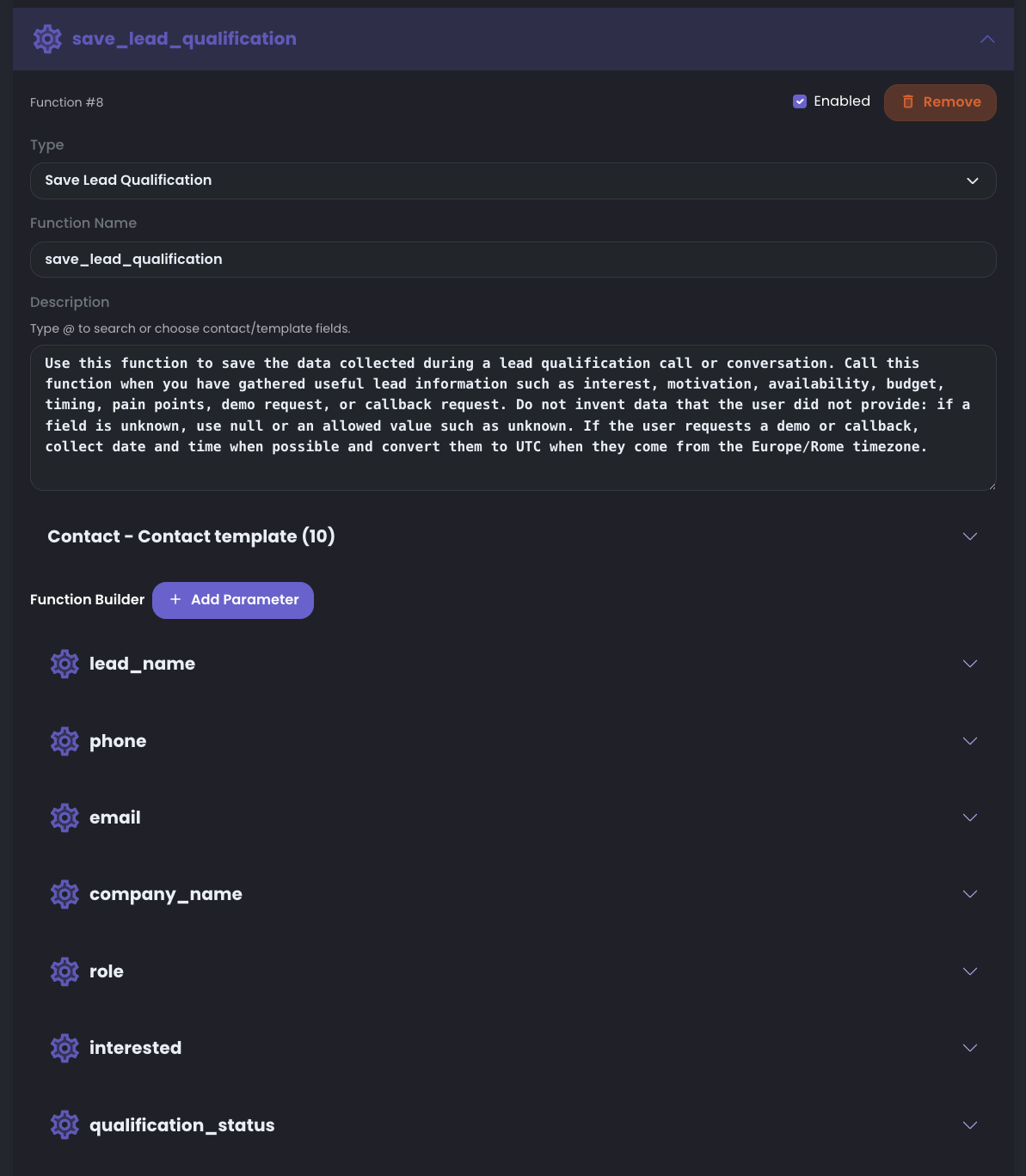
save_lead_qualification
Use save_lead_qualification when the agent needs to collect structured information and save the qualification result for a lead.
Unlike call-control functions such as hangup_call or transfer, this function is meant to be adapted to the business goal. Keep only the parameters that are useful for your qualification flow and add new ones when the agent needs to collect more information.
In many workflows, save_lead_qualification can be called more than once during the same call. Use repeated calls to save partial information as the agent collects it, instead of waiting until the end and risking losing useful data.
Start from the example schema, then remove fields that do not support the campaign or inbound goal. Keep only the data you will review, report, or send to another system.
After changing the schema, update the function and parameter descriptions so the LLM knows exactly what to collect before each save.
- default example parameters: lead_name, phone, email, company_name, role, interested, qualification_status
- progressive save pattern: call the function after important fields are collected, then call it again when new qualification data is available
- useful fields: customer interest, budget range, company size, preferred follow-up channel, qualification outcome, and call notes
Functions can use business software through APIs
This is the core value of functions: the agent is not limited to speaking. It can use APIs from the tools the company already works with and perform structured actions automatically.
Use API-backed functions only where the workflow needs a controlled external action. The agent decides when the function should run; RocketAiFlow sends the structured request to the configured endpoint.
- updating a CRM after lead qualification
- checking availability or looking up account details
- creating a follow-up, ticket, task, opportunity, note, quote, or appointment
- calling internal software that exposes a safe API endpoint
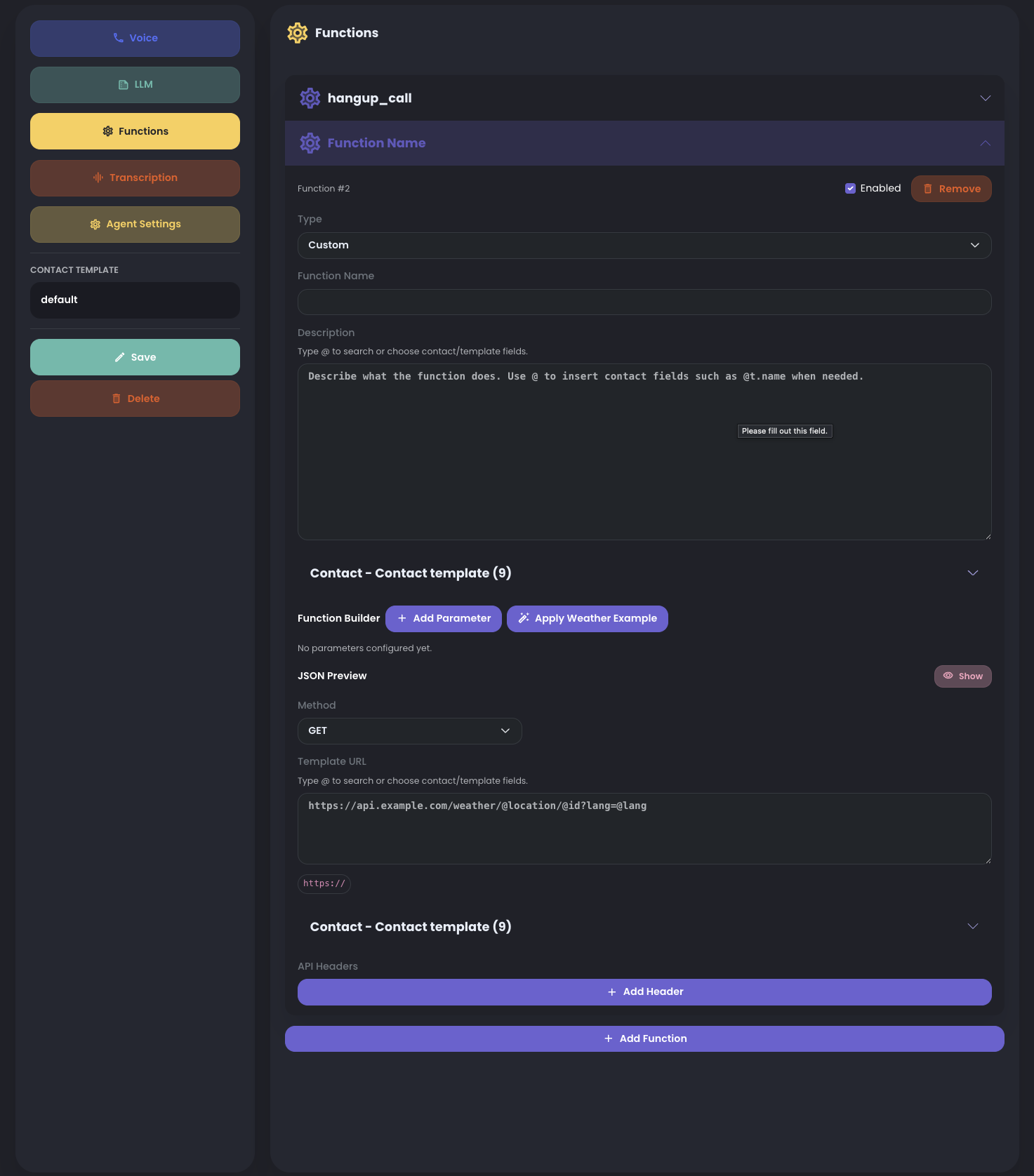
Custom API functions
Use a custom API function when a preconfigured function is not enough and the agent must call a company tool, provider, or internal service.
RocketAiFlow can create custom functions for any workflow that exposes a reachable API endpoint. You can add multiple custom functions to the same agent when the workflow needs different business actions.
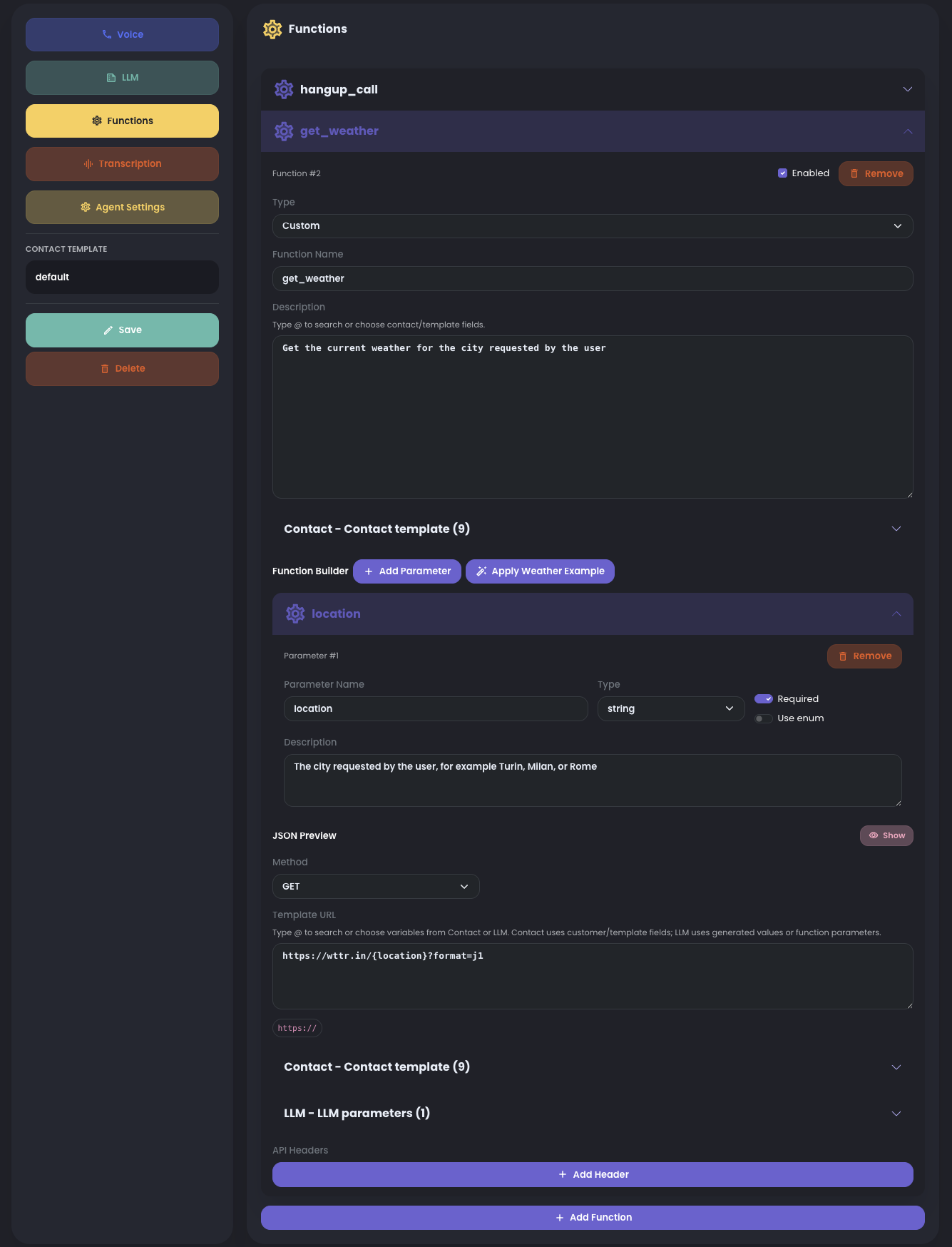
A custom function defines the API call: method, URL, headers, body or query values, LLM-generated parameters, contact-rendered values, response usage, and error behavior.
- Method and URL: choose GET, POST, PUT, PATCH, or DELETE and use a fixed URL or template URL such as https://api.example.com/contacts/{t.externalId}/notes.
- Headers and auth: add the authentication and content headers required by the API, such as Authorization or Content-Type.
- LLM parameters: values the agent collects or decides during the call, such as location, callback_reason, interest_level, note, or appointment_date.
- Contact/template parameters: values rendered from the active contact, such as {t.name}, {t.phone}, {t.email}, {t.externalId}, or custom contact data.
- Required fields and enums: mark values as required when the API cannot run without them, and use enums when the API accepts only fixed options.
- Response and errors: describe how the agent should use the API response and what fallback to use if the API is unavailable, rejects the request, or returns missing data.
Dynamic values belong in function inputs
Function inputs do not have to stay static. They can combine values collected by the LLM with values rendered from the active contact or workflow context.
When contact data is available, use contact fields inside descriptions, API URL templates, body values, or query values. This lets one function work across different contacts without hardcoding contact-specific URLs.
Example: if a custom PUT function must update a CRM contact and the CRM id was imported in the contact data as externalId, use that value in the API URL, for example https://crm.example.com/contacts/{t.externalId}. RocketAiFlow renders the contact id from the active contact, while the LLM can generate only the fields that need to be updated, such as status, notes, or qualification result.
Use dynamic values when the same function should behave differently by contact, campaign, route, call metadata, or information collected during the conversation.
- contact fields such as name, phone, email, campaign id, externalId, or custom data keys
- API URL templates that include contact values when the endpoint needs them
- workflow, campaign, route, or call metadata
- runtime values collected during the conversation
How To Structure Function Descriptions
OpenAI recommends clear function names, parameter descriptions, and instructions. In RocketAiFlow, treat the function description as the call contract: it should tell the LLM exactly what the function does, when to call it, what data is required, and when not to call it.
OpenAI does not require Markdown headings such as # inside the function description. Use clear plain text or short labels such as Purpose, Call when, Do not call when, and Arguments only if they make the description easier to read.
Keep the workflow policy in the agent prompt, then use the function and parameter descriptions to make each API action precise.
- Function name: use a stable action name, for example save_lead_qualification or transfer_to_service.
- Function description: start with the business action, then add the trigger condition: call this when...
- Do-not-call rule: explain when the function must not be called, especially when required information is missing.
- Required parameters: describe what the agent must collect before the call. If a required value is missing, the agent should ask one short follow-up question first.
- Parameter descriptions: specify meaning, source, format, examples, and allowed values.
- Enums: use them only for closed sets, and make each allowed value easy to understand.
- Contact-rendered values: say when a value comes from the active contact, for example
{t.externalId}, instead of being generated by the LLM. - One function should represent one business action. Avoid mixing transfer, saving data, lookup, and update logic in the same function.
- Keep the prompt and function descriptions aligned: same function name, same trigger, same required fields.
Tell the LLM when to call each function
For RocketAiFlow, do not rely only on the function name. Add a short Functions section in the agent prompt and map each business situation to the exact function the agent should call. See Configure Agent Prompt.
OpenAI describes function calling as a way for models to use external functionality and data when needed to follow instructions. See the OpenAI function calling guide and OpenAI prompt guidance.
Write the prompt like an operating rule, not like a generic feature description.
transfer_to_service: call it only when the caller asks for a supported department such as sales, support, or administration. Use the matchingextenenum value.transfer_call: call it when the caller explicitly asks to speak with a human or when the workflow requires a handoff to a known extension.rescheduled_contact: call it only after the caller asks to be contacted later and the agent has collected or confirmed the callback date and time.save_lead_qualification: call it when useful qualification fields have been collected. It can be called multiple times during the same call to save partial progress, then called again when more data is available. If a required field for that update is missing, ask a short follow-up question before calling the function.hangup_call: call it only after the conversation has reached a clear closing point, such as completed booking, goodbye, abandoned call, or silence timeout.- For every function, include a negative rule: do not call the function if the required information is missing or the user has not expressed the relevant intent.
First Validation Pass
After saving the functions, confirm:
- the function names are clear
- required parameters are present
- transfer destinations are valid
- the prompt tells the agent when to call each function
- the agent does not call a function when required information is missing
- API-backed functions send the expected payload to the target business tool
- rescheduled callbacks are saved in the intended campaign when campaign storage is required
Common Function Mistakes
- adding too many unrelated functions to one agent
- using unclear parameter names
- forgetting to align the prompt with the available functions
- testing transfers without a valid destination
- using a business API without checking authentication, required fields, and error handling
- putting too many unrelated business actions inside one function